This WordPress security checklist covers the 25 steps that close the ways most sites get hacked. They fall into five groups: who can log in, what software runs, how the server is set up, who’s watching, and how fast you can recover. An owner can do most of the first two groups in an afternoon. The rest is usually a job for your host, developer or maintenance provider.
Key takeaways
- Most WordPress hacks come through vulnerable plugins or stolen logins, so access and updates come first.
- Patchstack found 91% of new WordPress vulnerabilities in 2025 were in plugins, and heavily targeted ones were exploited within hours.
- Server settings, monitoring and backups are the layers that catch what prevention misses.
- Security isn’t a one-off job. Steps 8, 9, 12 and 21 to 24 need doing every week or month.
Why does WordPress need hardening?
WordPress runs 39.2% of all websites, which makes it the biggest single target online (W3Techs). WordPress itself is well looked after. The risk sits in what’s added to it and how it’s run.
Patchstack recorded 11,334 new WordPress vulnerabilities in 2025. 91% were in plugins and only six in WordPress core, and heavily targeted flaws were mass-exploited within a median of five hours (Patchstack). Our explainer on how websites get hacked walks through the main ways in. This checklist is the matching set of locks.
The checklist at a glance
Access: who can log in? (steps 1 to 7)
Bots try passwords against WordPress login pages all day. Wordfence blocked more than 55 billion of these attempts in 2024 (Wordfence). Start by looking at Users in your dashboard and asking who each account belongs to.
- Give every person their own account. No shared logins. If something goes wrong, you need to know who did what.
- Delete accounts you don’t recognise or no longer need. Past staff, old developers and agencies are the usual leftovers. Remove access the day someone leaves.
- Use the lowest role that does the job. Most content writers need Editor or Author, not Administrator. ASD advises giving administrator access only to those who need it (cyber.gov.au).
- Turn on two-factor login for every admin. A stolen password then isn’t enough on its own. Our guide to WordPress two factor authentication covers setting it up without lockouts.
- Use a password manager and long, unique passwords. ASD suggests at least 15 characters where MFA isn’t available, and never reusing a password across accounts.
- Don’t use “admin” as a username. WordPress’s hardening guide warns that easily guessed names like admin are “typically subject to attacks first” (WordPress Developer Resources). Add login attempt limits too.
- Protect the accounts above the website. Your email, hosting and domain registrar accounts can all reset or replace your site. Each needs 2FA and its own password.
Updates and software: what code is running? (steps 8 to 13)
This is where most hacks start. Open Plugins and Appearance, then Themes, and note what’s installed, what’s active and when each was last updated.
- Update WordPress, plugins and themes promptly. Apply security fixes within days. Take a backup first and check forms and checkout afterwards. WordPress says older versions “are not maintained with security updates”.
- Delete inactive plugins and themes. Deactivated code still sits on the server and can still be attacked. If you don’t use it, remove it.
- Replace abandoned plugins. In 2024, 1,614 plugins and themes were removed from WordPress.org for unpatched security issues (Patchstack 2025 report). A plugin with no update in a year deserves a closer look.
- Never install nulled plugins or themes. Pirated copies often carry backdoors and never get security patches.
- Watch for vulnerability alerts. 46% of the flaws Patchstack recorded had no fix when they were disclosed. Someone needs to know which plugins you run and act when one is named.
- Run a supported PHP version. PHP 8.2 stops getting security fixes on 31 December 2026 (PHP.net). Our guide to your WordPress PHP version explains how to check and upgrade safely.

Server and settings: how is the site set up? (steps 14 to 20)
These steps usually need your host or developer. Use them as a list of questions to ask.
- Use HTTPS everywhere. Every page, including the login and admin, should load over HTTPS, and plain HTTP should redirect to it. WordPress’s hardening guide recommends an encrypted connection for administration.
- Turn off the built-in file editor. Adding
DISALLOW_FILE_EDITto wp-config.php stops anyone editing theme and plugin code from the dashboard. WordPress notes it won’t stop every attack, but it “might stop some”. - Set correct file permissions. WordPress recommends 644 for files and 755 for folders, with wp-config.php locked down further. Anything set to 777 is a red flag.
- Stop PHP running in the uploads folder. Uploads should only hold images and documents. Blocking PHP there means a malicious file uploaded through a flawed plugin can’t run.
- Put a web application firewall in front of the site. A firewall blocks known attacks, including ones aimed at flaws with no fix yet. Our guide to choosing a WordPress security plugin explains where it’s best placed.
- Add security headers. A few lines of server settings tell browsers to block common tricks such as clickjacking. Our guide to security headers lists the ones that matter.
- Keep each site isolated on its hosting. On some hosting setups, one infected site can spread to every other site in the same account. Our secure web hosting page explains what isolation and server security should look like.
Monitoring: who’s watching? (steps 21 to 23)
WordPress’s hardening guide is frank: “Sometimes prevention is not enough and you may still be hacked.” Monitoring is how you find out in hours, not months.
- Scan for malware daily, on the server. A remote scan only sees public pages. A server-side scan and file change alerts catch new or altered files. Our guide to file integrity monitoring explains how that works.
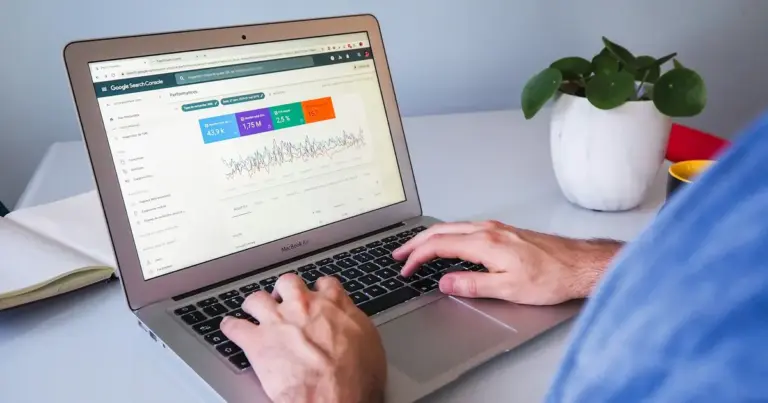
- Watch uptime and blacklists. Know within minutes if the site goes down, and within a day if Google or an email blocklist flags it. Check Search Console’s Security Issues report too.
- Keep an activity log, and read it. Log logins, new users, and plugin changes. A new administrator you didn’t create is one of the clearest signs of a hack. Sucuri found malicious admin users in 55% of infected databases (Sucuri).
Recovery: how fast can you bounce back? (steps 24 and 25)
If everything else fails, a clean backup is what gets you trading again. It also has to come from before the infection started, which is why how long you keep backups matters as much as how often you take them.
- Keep off-site backups, and keep them long enough. Follow the 3-2-1 rule: three copies, on two kinds of storage, with one off-site (Backblaze). Keep at least 30 days, because some hacks go unnoticed for weeks.
- Test a restore, and write down who to call. A backup you’ve never restored is a hope, not a plan. Note where backups live, who can restore them, and who to call out of hours.
How often should you go through this checklist?
The checklist splits into three rhythms:
| How often | Steps |
|---|---|
| Once, then whenever something changes | 1, 3, 6, 7, 11, 14 to 20 |
| Weekly or monthly | 8, 9, 12, 21 to 24 |
| Quarterly | 2, 4, 5, 10, 13, 25 |
The weekly and monthly items are where most sites slip. Sucuri found 39.1% of content management systems were out of date when they were infected. Nobody planned to skip those updates; it just didn’t get done.
What if I find something wrong along the way?
Stop and don’t start deleting. An admin account you don’t recognise, strange files or a redirect you didn’t set up can mean the site is already compromised. Deleting the one thing you can see often leaves the backdoor behind, and the attacker comes straight back.
Take a backup of the site as it is, change your passwords, and follow our guide for a WordPress site hacked today. If customers are affected or the site is down, call our 24/7 emergency line on 0426 833 422.
Should I do this myself?
You can. Steps 1 to 13 need no technical skills, just time and care. Steps 14 to 20 touch server and code settings, where a small mistake can take the site offline, so they’re better left to your host or developer.
If you’d rather hand it over, this checklist is close to what our website security monitoring covers. Every Maintain & Protect plan starts with a full security audit and lockdown.
Each plan then includes firewall and login protection, daily malware scans, blacklist and uptime monitoring, and off-site backups kept for 30 days. Advantage and Elite add two-factor login and advanced firewall rules. Compare the levels on our website maintenance plans page. Sites on Maintain & Protect are covered by our “hack-free or we fix it free” promise.
Frequently asked questions
What is the most important WordPress security step?
Keeping plugins updated, because that’s where 91% of new WordPress vulnerabilities were found in 2025. Two-factor login on admin accounts comes a close second. Together they close the two most common ways in.
Do I need a security plugin if my host has a firewall?
Often a plugin still helps, for login protection, two-factor login and activity logs. A server firewall and a plugin do different jobs. What you don’t want is two security plugins doing the same job, which can slow the site and cause conflicts.
Should I change the WordPress database table prefix?
On a new site, a custom prefix is a reasonable small step. WordPress says it can block some SQL injection attacks. On an existing site, changing it risks breaking things for little gain, so leave it to a developer.
Is hiding the wp-admin login page worth doing?
It cuts down bot noise, but it isn’t real protection on its own. Strong unique passwords, two-factor login and login attempt limits do far more. Treat a hidden login page as a tidy-up, not a lock.
How long does it take to harden a WordPress site?
Steps 1 to 13 take a few hours on a typical small business site. The server steps depend on your host. The ongoing work, updates, scans and backup checks, takes a little time every week, which is why many owners hand it to a maintenance provider.

Sources
- Usage statistics of WordPress, W3Techs, November 2026
- State of WordPress Security in 2026, Patchstack
- Small business cyber security handbook: Securing accounts and identities, Australian Signals Directorate, October 2026
- Hardening WordPress, WordPress Developer Resources
- State of WordPress Security in 2025, Patchstack
- Supported versions, PHP.net, November 2026
- 2023 Hacked Website and Malware Threat Report, Sucuri, June 2024
- The 3-2-1 backup strategy, Backblaze